


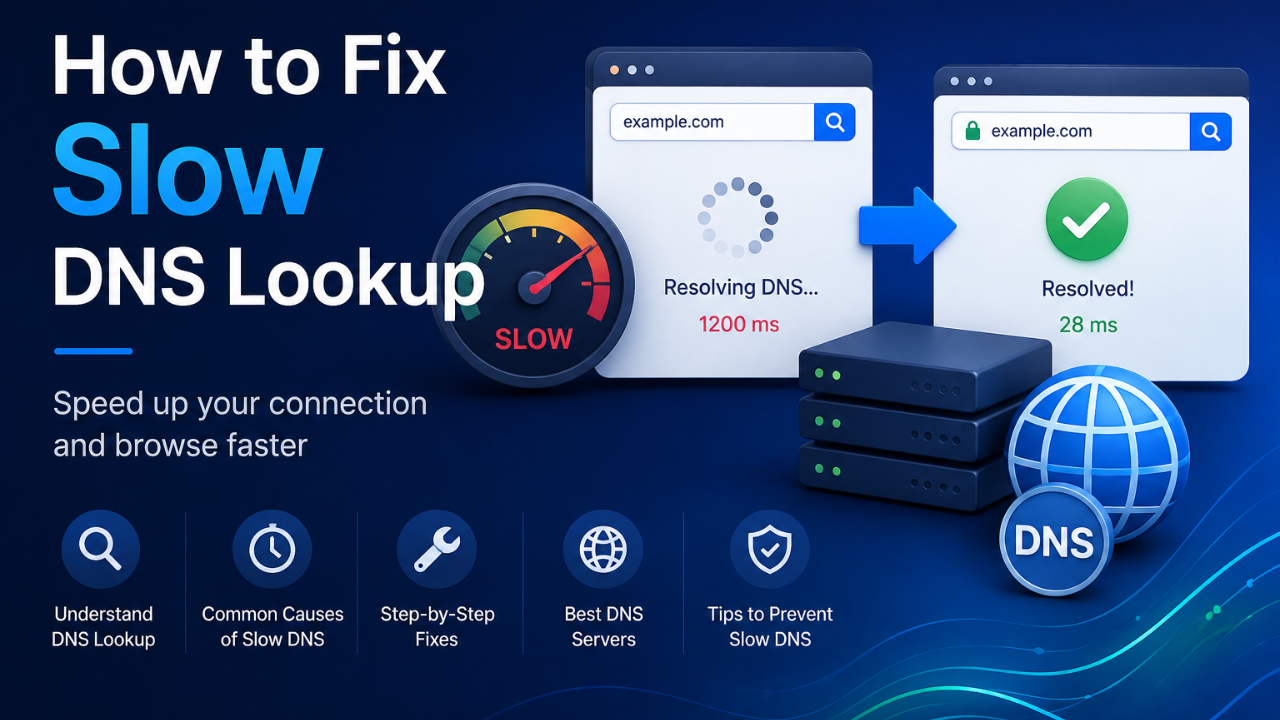
Your website drags. You can’t figure out why. The real problem might be hiding where you can’t see it — the Slow DNS lookup. Every time someone visits a site, their browser has to find the correct IP address first. If that step stalls, everything else piles up behind it. You might catch “resolving host” hanging in the corner of your browser while you sit there. That little delay increases your bounce rate. It also hurts your search rankings because it inflates your Time to First Byte (TTFB).
A normal DNS lookup lands between 20 and 120 milliseconds. But when things break — overloaded ISP servers, stale cache, or jacked-up network settings — that tiny gap stretches into full seconds. Here’s how to knock it out.
Key Takeaways
Slow DNS usually traces back to overloaded ISP servers, IPv6 misconfigurations, or ghost network adapters. The fastest wins come from switching to public DNS, flushing your cache, and scrubbing old network settings. Restart your router and modem first. It clears more than you’d expect. Test your actual DNS speed instead of guessing which server is fastest.
What Is a DNS Lookup and Why Does It Slow Websites Down?
Think of DNS like your phone’s contacts. You tap a name. Your phone dials a number. DNS does the same dance — it turns website names like example.com into IP addresses like 192.0.2.1 so your browser knows where to knock. This lookup has to finish before anything on the page can even think about loading. Even with blazing internet, a slow DNS step creates a bottleneck that makes the whole experience feel like molasses. It pumps up your DNS lookup time and drags your TTFB down with it. If the lookup flatlines completely, you get the “Site can’t be reached” error and nothing loads. Period.
Common reasons DNS gets slow:
- Your ISP’s server is far away or swamped. Distance matters. Every click has to travel to the resolver and bounce back.
- The lookup chain runs too long. Sometimes your request hops through multiple servers before it finds the right IP. Each hop takes on time.
- The record isn’t cached. If a site is rarely visited, the DNS server has to dig through the global registry from scratch instead of serving it instantly.
Cloudflare nails it: fixing this “first mile” of your connection is one of the quickest ways to speed up your whole browsing experience.
What Causes Slow DNS Lookup on Your Network?
Most people blame their internet speed. The real culprit is usually how your network handles address requests.
The usual suspects:
IPv6 fallback delay. Modern systems try IPv6 first. If your ISP botches IPv6 support, your device sits there waiting for up to 5 seconds before giving up and switching to IPv4.
Stale cache after a site moves. Your computer saves DNS records to save time. But if a site switches servers and your local cache still points to the old IP, your browser spins its wheels trying to reach a dead address.
Ghost adapters from old VPNs. Leftover drivers from old VPNs or virtual machines create fake network adapters. Your system sometimes tries to route DNS queries through these dead ends, causing random slowdowns and drops.
Pin down which one is hitting you. Then you’ll know exactly what fix to throw at it.
Basic Troubleshooting First
Before you dig into settings, try these quick steps. They solve most DNS problems without any heavy lifting:
Restart your hardware. Unplug your router and modem for a full 60 seconds, then plug them back in. This clears the internal resolver table and resets stuck connections.
Test in private mode. Open a page in Incognito or Private browsing. If the “resolving host” message disappears, the problem is probably a bloated browser cache or a bad extension — not your network.
Switch to public DNS. Your ISP’s default servers are often crowded. Try Google (8.8.8.8) or Cloudflare (1.1.1.1) instead. Both are built for speed and reliability.
Flush your DNS cache. On Windows, open Command Prompt as admin and run ipconfig /flushdns. On Mac, use Terminal with sudo dscacheutil -flushcache; sudo killall -HUP mDNSResponder.
Read Also: DOGE Software Licenses Audit HUD: Find out the Efficiency vs. Controversy
7 Practical Fixes for Faster Loading
1. Benchmark and Switch to a Faster Public Resolver
Don’t guess which DNS server is fastest. Test it.
Run a local benchmark. Use GRC DNS Benchmark or Namebench to compare your current ISP resolver against public options from your actual location.
Pick reliable servers. Cloudflare (1.1.1.1) and Google (8.8.8.8) consistently beat ISP servers in speed and uptime. Update your settings. Plug these addresses into your router or network adapter properties.
Tip: Run benchmarks when your network is quiet. Background traffic can skew the results.

2. Do a “Triple Flush” — OS, Browser, and Router
Old or corrupted DNS data hides in three places. Clear them all.
| System | What to Do | Notes |
| Windows | ipconfig /flushdns (run as admin) | You should see “Successfully flushed the DNS Resolver Cache.” |
| Mac (modern) | sudo dscacheutil -flushcache; sudo killall -HUP mDNSResponder | Needs your admin password; no confirmation message. |
| Linux (Ubuntu) | sudo systemd-resolve –flush-caches | Run resolvectl statistics to check if it’s empty. |
| Chrome / Edge | Go to chrome://net-internals/#dns | Click “Clear host cache.” |
| Firefox | Go to about: networking#dns | Click “Clear DNS Cache.” |
Tip: After clearing software caches, power-cycle your router for 30 seconds. This wipes the hardware’s internal resolver table and gives you a clean slate.
3. Fix the IPv6 Delay
Some ISPs still haven’t gotten their IPv6 act together. Your device tries IPv6 first because that’s how modern systems are wired. Then it sits there. And sits there. Up to five seconds of dead air before it finally gives up and falls back to IPv4. That “DNS not responding” error you’re seeing? This timeout is usually the reason.
Windows: Right-click your network connection, hit Properties, find “Internet Protocol Version 6 (TCP/IPv6)” in the list, and uncheck it. Click OK. Done.
Mac: Head to System Settings > Network. Pick your connection, click TCP/IP, and set “Configure IPv6” to either “Link-local only” or just “Off.”
Quick note: Older routers choke on dual-stack setups. If yours is getting long in the tooth, this shortcut is safe and it’ll save you headaches.
4. Clean Out Ghost Network Adapters
That VPN you tried six months ago and uninstalled? It probably left something behind. Same goes for VirtualBox, VMware, or any other virtualization tool you’ve messed with. These programs create virtual network adapters that don’t always clean up after themselves. Your system still sees them. Sometimes it tries to shove DNS queries through these dead adapters. That’s when you get random slowdowns. Or drops. Or both.
Windows: Hit the Start button, search for Device Manager, open it, and expand “Network adapters.” Look for anything with “TAP,” “Virtual,” or a VPN brand name you don’t use anymore. Right-click. Disable. Don’t delete unless you’re sure — disabling is safer.
Mac: Open System Settings > Network. Scroll through the list. See any VPN profiles you forgot about? Virtual bridges sitting there inactive? Hit the minus button and nuke them.
The payoff here is immediate. Once those ghosts are gone, your traffic stops wandering into dead ends and your DNS stops fighting itself.
5. Set Faster DNS at the Router Level
Changing DNS on every phone, laptop, tablet, and smart TV in your house is a pain. Do it once at the source instead.
How: Open your browser and punch in 192.168.1.1 (or whatever your router’s admin address is). Log in. Dig around for WAN settings or DHCP settings — the exact spot varies by brand, but it’s usually under “Internet” or “Network.” You’ll see fields for DNS servers, probably filled with your ISP’s defaults. Swap them out. Drop in 1.1.1.1 and 1.0.0.1 for Cloudflare, or 8.8.8.8 and 8.8.4.4 for Google. Save. Reboot the router if it asks.
Why: Every single device that connects to your Wi-Fi — your kid’s gaming console, the smart TV, your phone, that random tablet in a drawer — automatically uses the faster DNS. You don’t touch them. They just get the boost. That’s it.
6. Test DNS-over-HTTPS (DoH)
Modern browsers encrypt DNS queries with DoH to stop ISPs from snooping. But encryption can add lag if the secure server is far away or underpowered.

The test: Temporarily turn off “Use secure DNS” in your browser’s privacy settings. If the “resolving host” lag vanishes, you’ve found the problem.
The fix: Don’t ditch encryption entirely — just switch to a closer, faster provider like Google Public DNS. You keep the privacy without the speed hit.
7. Use Your Hosts File for Frequent Sites
For sites you visit daily, you can skip DNS altogether by mapping the domain straight to its IP in your local hosts file.
Windows: Go to C:\Windows\System32\drivers\etc\hosts
Mac: Go to /etc/hosts
How: Open the file as admin, add a line like 192.0.2.1 example.com, save, and restart your browser. The “resolving host” step disappears for that site.
Tip: Only do this for stable sites that don’t change IPs often. If the site moves servers, you’ll need to update the entry manually.
Final Word
Slow DNS lookups are sneaky. They stall your page before anything even shows up. But fixing them doesn’t require paid tools or deep expertise. Switch to a faster resolver. Flush your caches. Clean up IPv6 and ghost adapter issues. You’ll feel the difference immediately. Your TTFB drops. Your browsing feels snappier. Your site performs better for visitors, too.
Read More: Integrated Design Project: A Smarter Way to Handle Modern Projects
